
Trade Polymarket with Traderline.
What you need
▾
- Your email inbox, open in another tab. Polymarket sends codes there.
- A way to pay (only for Level 2). Polymarket has the most common options: card, Apple Pay, Google Pay, Revolut Pay and PayPal. Crypto works too.
- A computer, Windows or Mac. The trading app is a desktop app.
- About ten minutes, start to finish.
Before you start: check the rules
▾
Polymarket is not available everywhere. During sign-up you confirm you accept the Polymarket Terms of Use and that you are not in the U.S. or another restricted region. Read them first. You will also connect Traderline, so read the Traderline Terms & Conditions, including the Polymarket tab. In step 11 you additionally accept Magic's Terms of Service, linked on that screen.
Use of these platforms is only permitted where allowed by law, and checking that for your country is your responsibility.
Create your account
Four small steps. At the end of this level your account and your wallet exist.
1Open Polymarket
▾
Click the button below to open Polymarket, then click the blue Sign Up button in the top right corner of the page.
Open Polymarket →
2Enter your email
▾
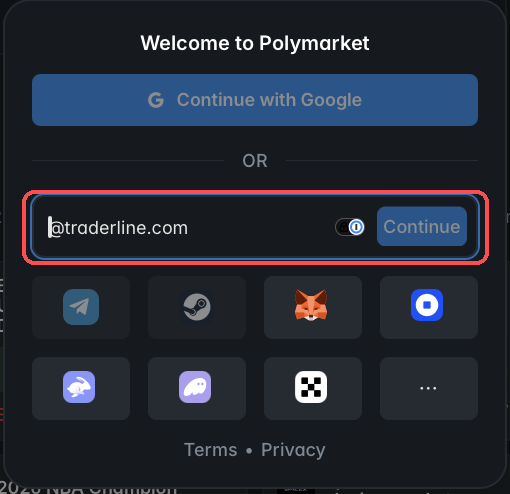
Type your email address and click Continue. If you prefer, use Continue with Google instead. Ignore the other icons, you don't need them.
3Enter the code from your inbox
▾
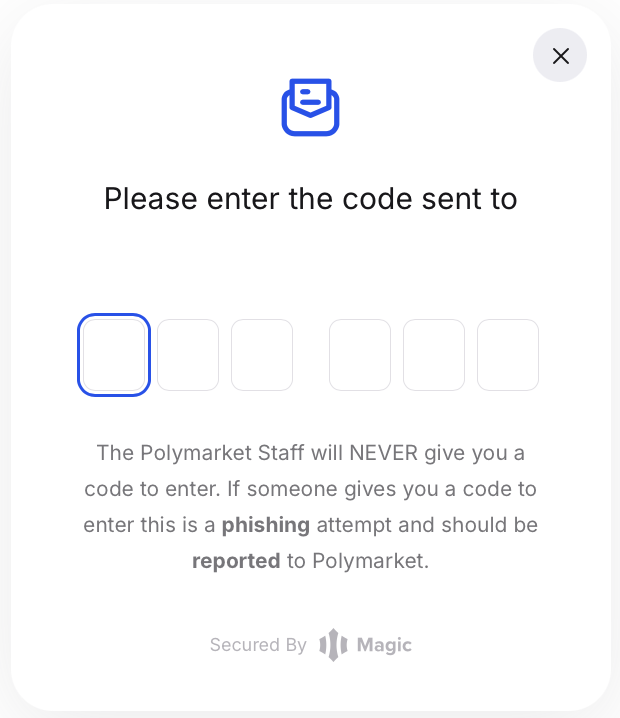
Polymarket emails you a 6-digit code. Open your inbox, copy the code, and type it in. No email after a minute? Check your spam folder.
4Pick a Polymarket username and accept the terms
▾
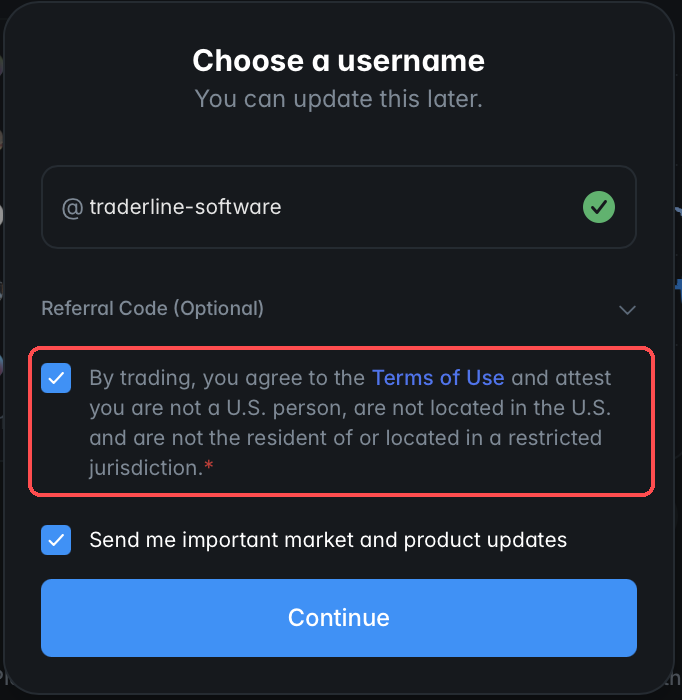
Type any username. You can change it later. Then tick the first box, highlighted below: it means you accept the Terms of Use and confirm you are not in the U.S. or a restricted region. Click Continue.
That's it. Your account and your wallet now exist.
Add money
You can deposit any time, but do it before Level 3: connecting Traderline requires balance in the account.
5Choose how to pay
▾
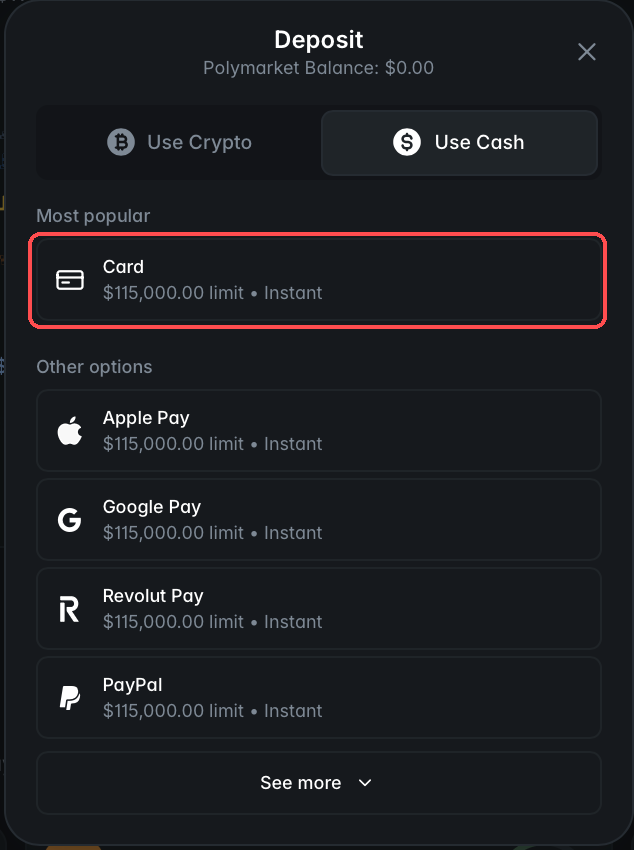
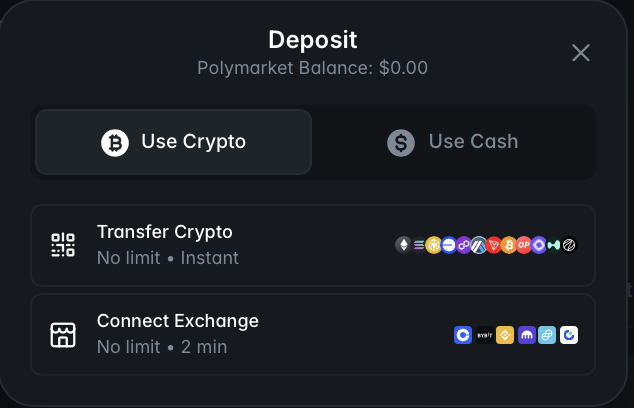
Click Deposit at the top of Polymarket. In the window that opens, choose the Use Cash tab and pick your payment method. Card is the most popular. Apple Pay, Google Pay, Revolut Pay and PayPal work exactly the same way.
Prefer to deposit crypto instead?▾
Choose the Use Crypto tab. Transfer Crypto gives you a deposit address (minimum $10), and Connect Exchange links an account like Coinbase or Binance. If none of this means anything to you, just use the Cash tab above.
6Choose the amount and pay
▾
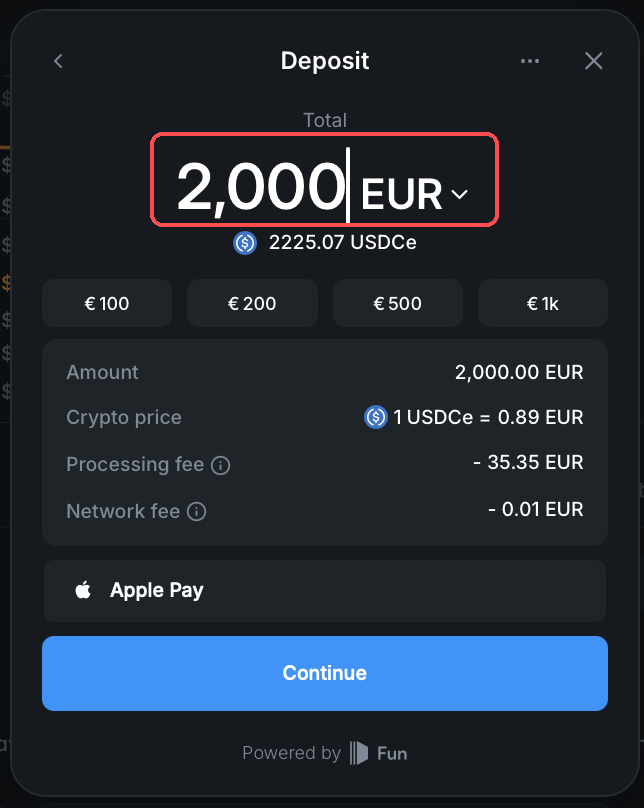
Type how much you want to deposit and click Continue. The window shows your money converted to USDCe, the digital dollar your Polymarket balance is held in. 1 USDCe is worth about 1 US dollar. Any processing fee is shown before you confirm, so there are no surprises.
Paying by card for the first time? Three quick extra screens.
The payment provider asks for a few details the first time. This is a normal identity check, it happens once, and then you pay.
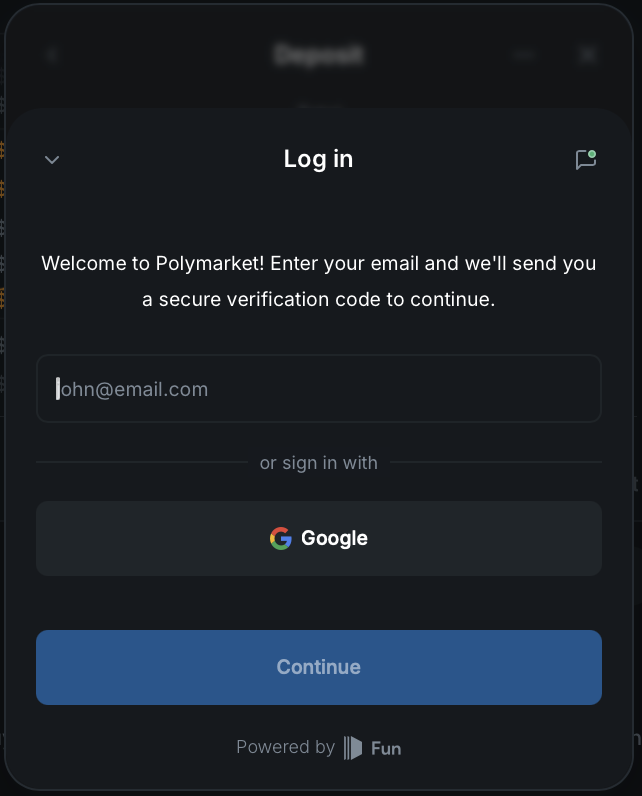 A Confirm your email. A new code is sent to it.
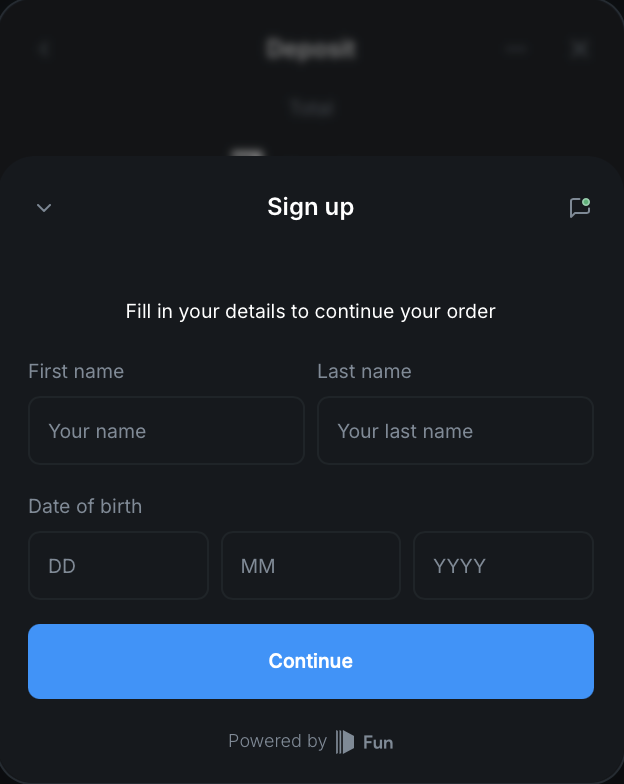 B Enter your name and date of birth.
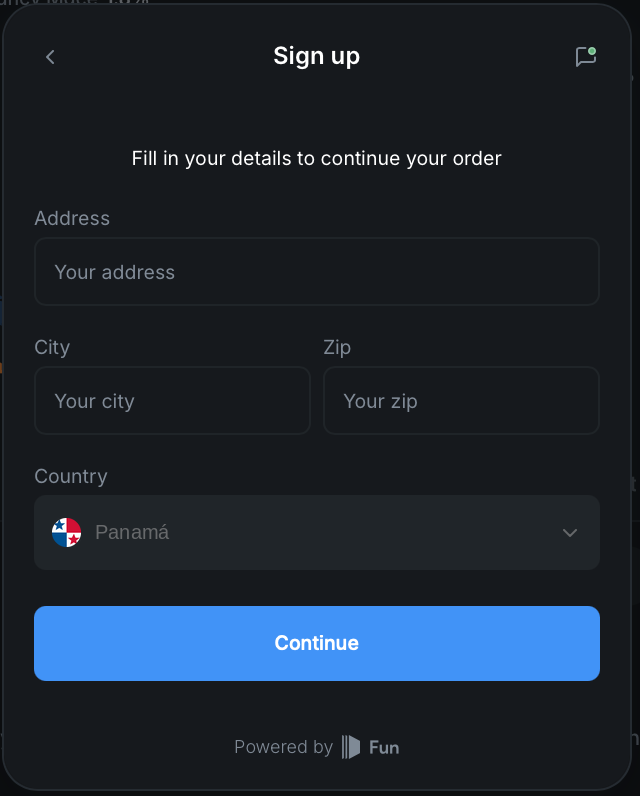 C Enter your address and click Continue.
Connect Traderline
Eight small steps. At the end, you trade Polymarket with the ladder.
7Download Traderline
▾
Click the button below, pick your system, Windows or Mac, and download Traderline for Polymarket. Install it like any other app and open it.
Download Traderline →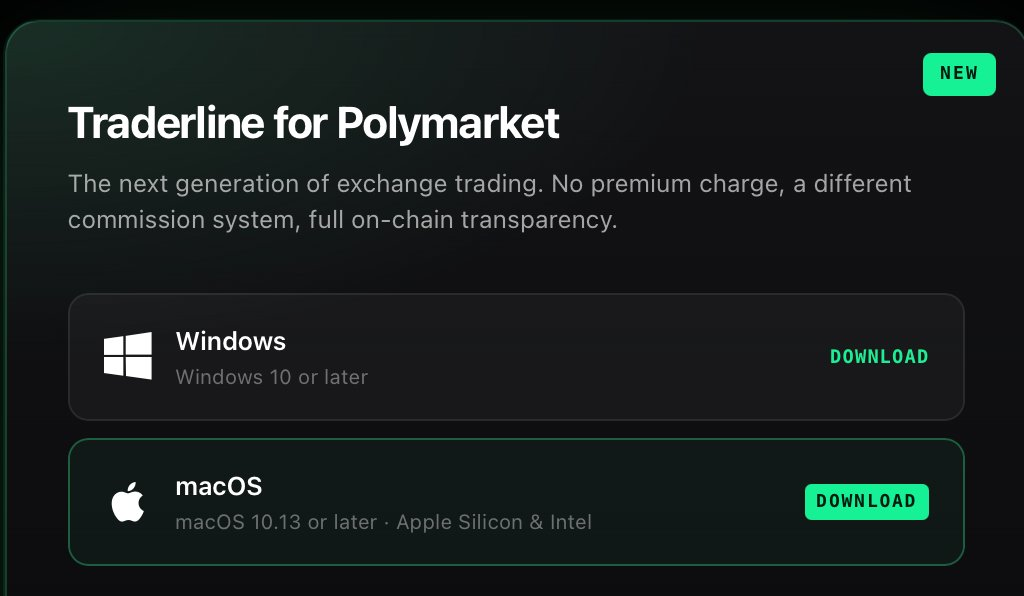
8Click Connect
▾
In the app, look at the top right corner and click the green Connect button, highlighted below.
 Traderline · Polymarket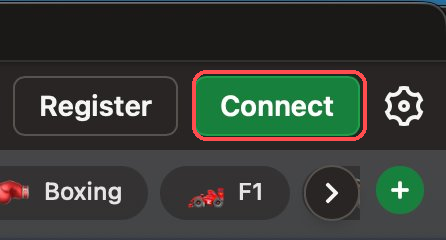
9Say when your account was created
▾
The app asks when your Polymarket account was created. You made yours in Level 1 of this guide, so pick the first option, On or after May 4, 2026.
Traderline · Polymarket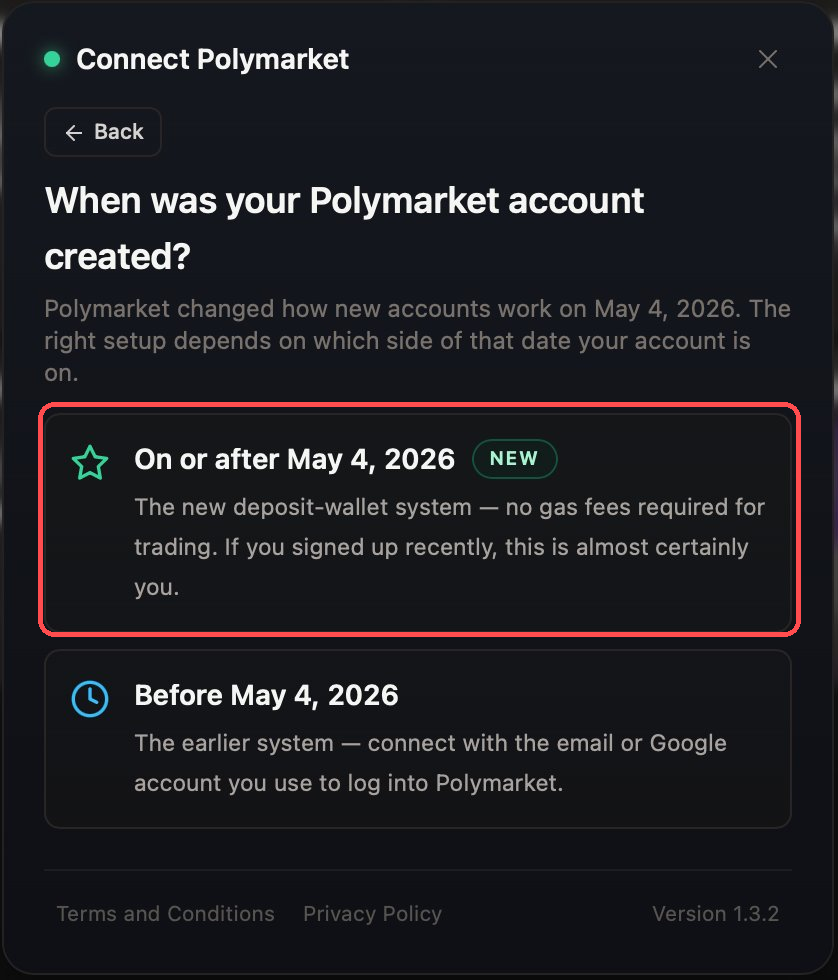
10Click Export from Magic
▾
The Connect your wallet screen appears. It asks for your signer private key: the password to the wallet Polymarket created for you in Level 1. Traderline needs it to place your orders on Polymarket.
You don't have the key yet, and that's normal. Click Export from Magic, top right of the field, highlighted below. It opens the official page of Magic, the service that keeps your key, in your browser.
Traderline · Polymarket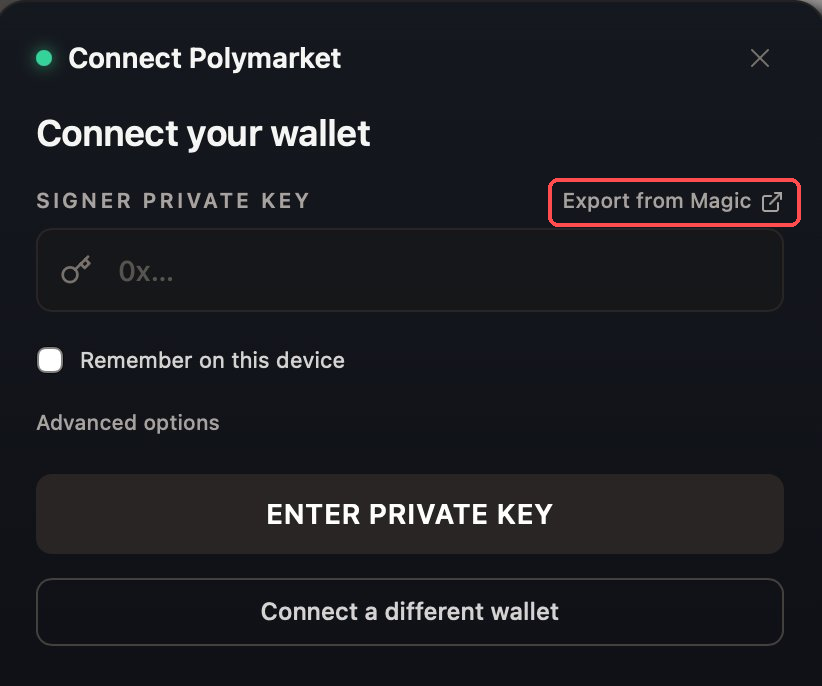
11Tick the boxes and reveal your key
▾
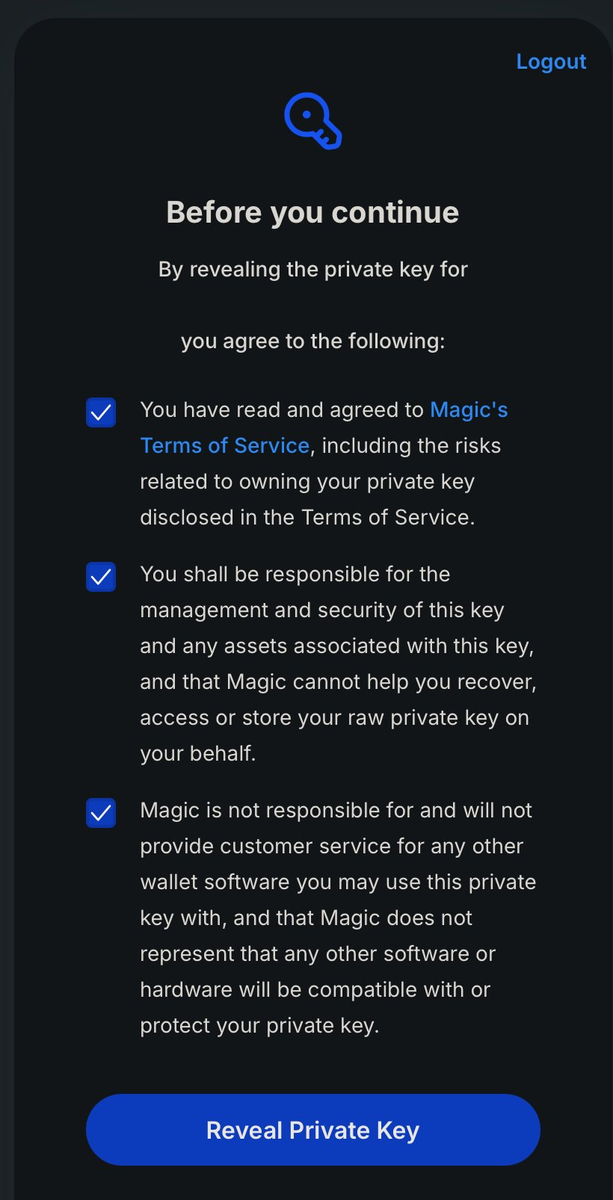
Tick all three boxes. They are Magic’s conditions for the handover, including its Terms of Service, linked right there on the page. Then click Reveal Private Key.
12Copy the key
▾
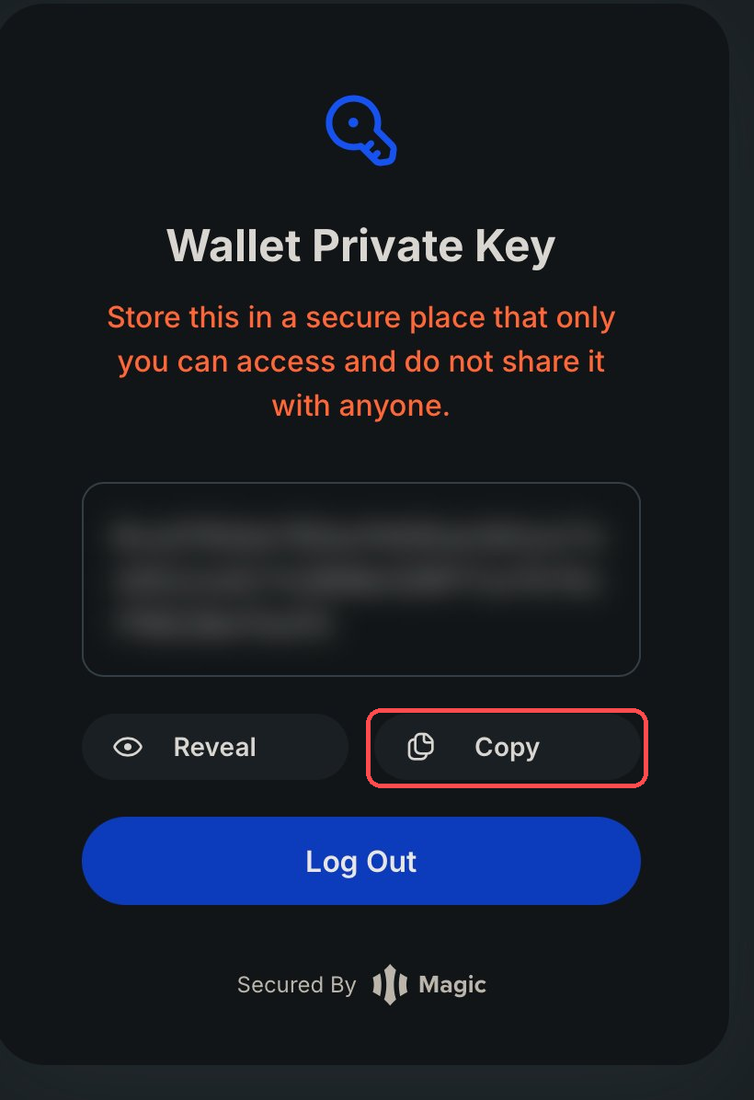
Click Copy. If Copy is greyed out, click Reveal first, then Copy. You don’t need to read it, write it down, or memorize anything. The computer is holding it for you now.
13Paste it into Traderline and connect
▾
Go back to the Traderline app. Click the Signer Private Key field and paste: Ctrl+V on Windows, Cmd+V on Mac. A green box appears: Logged in as Polymarket Proxy, pUSD available. That’s your account, recognized.
Tick Remember on this device if this is your own computer, so you don’t have to paste the key again next time. Then click CONNECT.
Traderline · Polymarket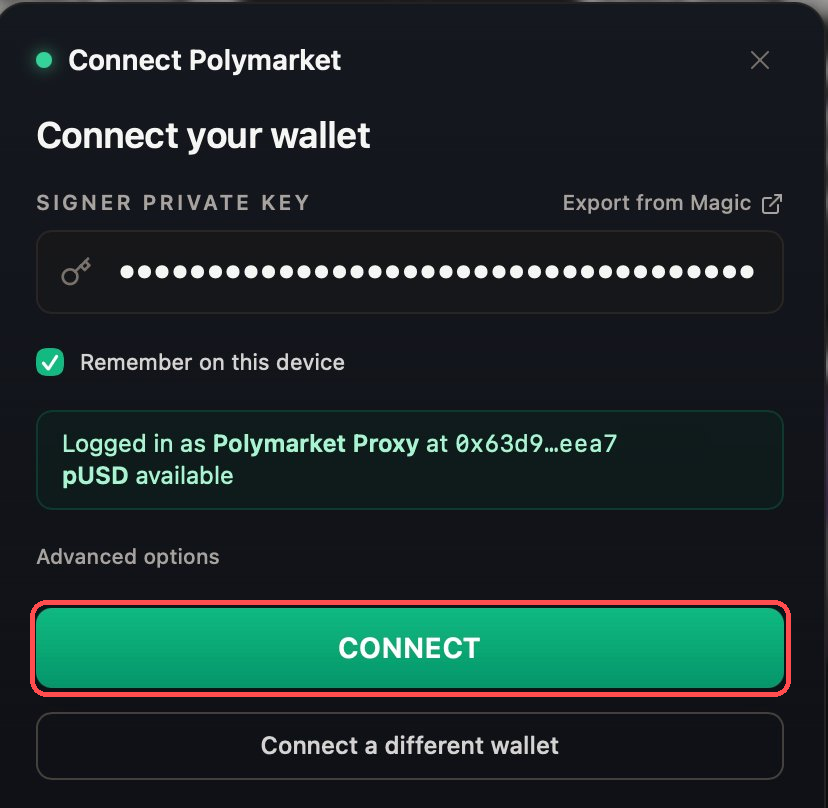
14Pick your Traderline nickname
▾
Last screen: a public nickname for the Traderline leaderboard. 3 to 32 characters, lowercase letters, digits and hyphens. It locks in when you sign your next trade. Not sure yet? Click Later and set it any time from the header.
Traderline · Polymarket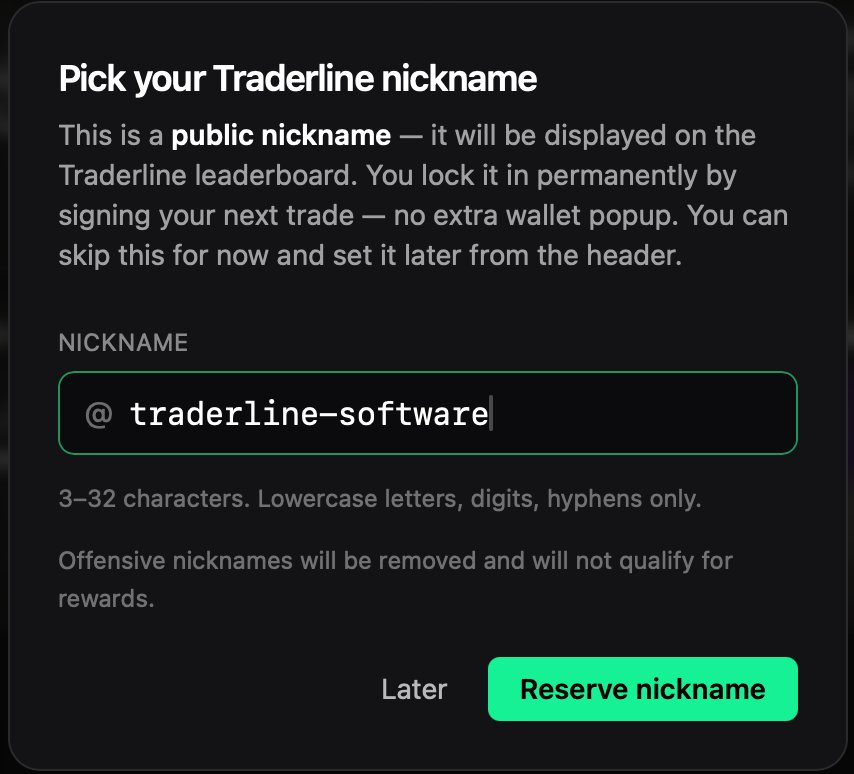
If something goes wrong
▾
- The code email never arrives
- Check your spam folder first. Still nothing? Close the window, click Sign Up again and a new code is sent.
- Sign-up says your region is blocked
- Polymarket is not available in every country, and account creation tells you immediately. There is no workaround Traderline can offer, and trying to bypass the block breaches Polymarket's terms.
- You paid but the balance shows zero
- Card payments are usually instant but can take a couple of minutes. Refresh the page. If it still shows zero after 15 minutes, contact Polymarket support with your payment receipt.
- The Magic page asks me to log in
- Use the same email from Level 1. Magic emails you a code, exactly like the sign-up did.
- Copy is greyed out
- Click Reveal first, then Copy.
- The green "Logged in" box never appears
- The key didn't paste completely. Go back to Magic, click Copy again, paste again. Never type it by hand.
- CONNECT won't go through
- Connecting requires balance in your Polymarket account. An empty account can't be connected. Deposit in Level 2, then try again.
- Connected, but the balance shows 0
- Your deposit may still be processing on Polymarket. The money lives on Polymarket; Traderline only displays it. Give it a few minutes and refresh.
- Still stuck
- Ask in the Traderline Discord. Real people, fast replies. Never accept DMs on Discord from users who appear to be from Traderline or Polymarket, it’s a known scam. Polymarket and Traderline will never DM you first.
Connected. The ladder is yours.
Pick a Type like Sports at the top, search for a market, and trade. Same skills, new exchange.
Traderline · Polymarket